The navigational features of this sample screen and the others are functional, i.e.
you can move back and forth between control screens just like you would on a real HMS. From this
security screen, the Back, Quit, Video Security, and Video Log buttons take you to additional sample screens,
or you can
click here to view a security screen in alarm.
Place the cursor over any screen element to read a description of its purpose.
Place the cursor over any screen element to read a description of its purpose.
We are very interested in hearing your opinion about the cursor rollover and popup
method of presenting the above screen element descriptions.
Does it work for you?
Does it drive you crazy?
Do you have any suggestions to improve it?
(Please keep in mind this is not how the actual HMS works. It is only done here on
the website to show how sample HMS screens appear and explain how they work.)
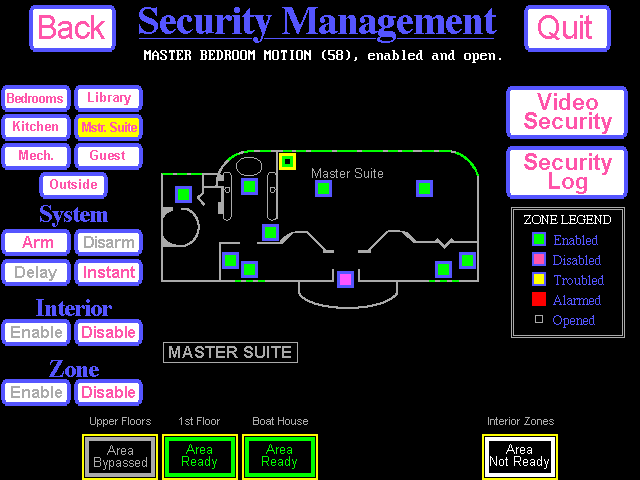
The screen title indicates the name of the subsystem you can control from this screen.
Touch any displayed sensor icon and its status will be displayed. The status will display the
sensor description, zone number, alarm state (alarmed, tampered, enabled, disabled, etc.), and
sensor state (activated, deactivated, opened, closed, etc.).
The Back button returns you to the previous screen, up one level in the menu structure.
Click on the Back button to return to the main menu screen.
Note: This is not the same as your browser's back button. This button operates within the context of
the HMS screens.
The Quit button ends your management session, logs you out, and changes the display to
a dormant screen (similar to a screen saver) displaying the artwork or photo of your
choice.
Click on the Quit button to return to the HMS dormant screen.
The floorplan name indicates the floor or section of your home you are currently viewing.
The floorplan shows an entire floor or a section of a floor of your home. Displayed on the floorplan
will be major architectural details, room names for larger rooms, and any appropriate control information
for the subsystem controlled from the touchscreen. This is an example of a security screen showing intrusion
sensors and their locations.
When the security system is not in alarm, all intrusion sensors are displayed on the floorplan in the
approximate location they are physically installed. The legend on the right interprets the current status
of the sensors shown on the floorplan. On this screen all sensors are displayed as enabled and closed.
This zone is enabled and closed (ready for system arming).
In the event of an alarm condition other than an intrusion, additional icons will be displayed indicating the type of alarm
and its location.
This zone's status indicates that it is enabled and opened (i.e. motion is being detected in the room)
and is preventing the area from being armed as indicated in the "Area Not Ready" status below.
This zone is also the selected zone (as indicated by the yellow border) for displaying
zone status (above).
This zone is in bypass (i.e. the state of the zone will be ignored). This allows the area or complete
system to be armed while allowing this door to remain open. The bypass status is also indicated via the
"Area Bypassed" status below.
The floorplan section buttons allow you to change the section of your home and
its surroundings displayed on the touchscreen.
Typically, homes have between three and nine different sections to cover different
areas of the house, any outbuildings under control of the system, and often a generic
outdoor screen.
The Arm and Disarm buttons arm and disarm the security system. No surprise there!
Only the available options are enabled.
If your security system supports multiple areas or partitions and two or more areas
are selected for control, your Home Management System will insure that all selected
areas are armed or disarmed according to the button you select.
The Delay button enables exit and entrance delays on perimeter zones (typically doors);
the Instant button disables them. Delayed arming is typically used when no one is home
to allow time to disarm your security system when you return. It also gives you time to
leave after arming the system.
Instant arming is typically used when you secure your property while you are home and you
want instant notification of a perimeter breech. You will usually use this when retiring
for the evening.
Only those options available for the selected areas are enabled. If your security
system supports multiple areas or partitions and two or more areas are selected for
control, your Home Management System will insure that all selected areas are set for
delay or instant according to the button you select.
The Interior Enable and Disable buttons control bypassing of all interior intrusion sensors, as a group,
such as motion detectors.
Typically, if you are home and wish to arm the perimeter sensors only, then select Interior Disable.
Or, when you are away and no one is expected to be moving through your home, select Interior Enable.
Only those options available for the selected areas are enabled. If your security
system supports multiple areas or partitions and two or more areas are selected for
control, your Home Management System will insure that all selected areas are
set for interior enable or disable according to the button you select.
The Zone Enable and Disable buttons allow you to bypass individual sensors. Only the available options are
enabled.
A good example of when you might use this is if you wish to leave a window open at night.
You would first disable that zone, and then arm the system.
Depending upon your security system and how it is configured, disabled zones are typically
re-enabled when the security system is disarmed. Security systems typically refer to this
as bypassing a zone.
If your security system supports multiple areas or partitions, these buttons select the areas to
be displayed and controlled by the touchscreen. If an area is selected, its sensors are displayed on the
screen and it receives any commands sent with the control buttons on the left side of the screen. The area
buttons also display the status of the zones within the area.
The Video Security button allows you to view and control your security cameras.
Click on the Video Security button to see a sample
of how cameras can be managed.
The Security Log button displays important security events such as who armed or
disarmed the security system and when, and, of course, alarm events.
The security
log can also log other important events that are detected by, reported to, or
triggered through your HMS giving you a detailed history of the goings on in
your home.
Click on the Security Log button to see a sample of a security log screen.
The Zone Legend provides a reference, or key, for interpreting the status of the intrusion
zones displayed on the floorplan.